Making & receiving calls
Making & receiving calls
Telenow runs conversations three ways: AI‑agent calls (the agent talks autonomously), the human softphone dialer (a person on the line, the AI is out of the loop), and browser web calls. This page covers how each one is placed and how inbound calls are routed. For bulk outbound, see Campaigns; for the API, see the Sessions & calls API.
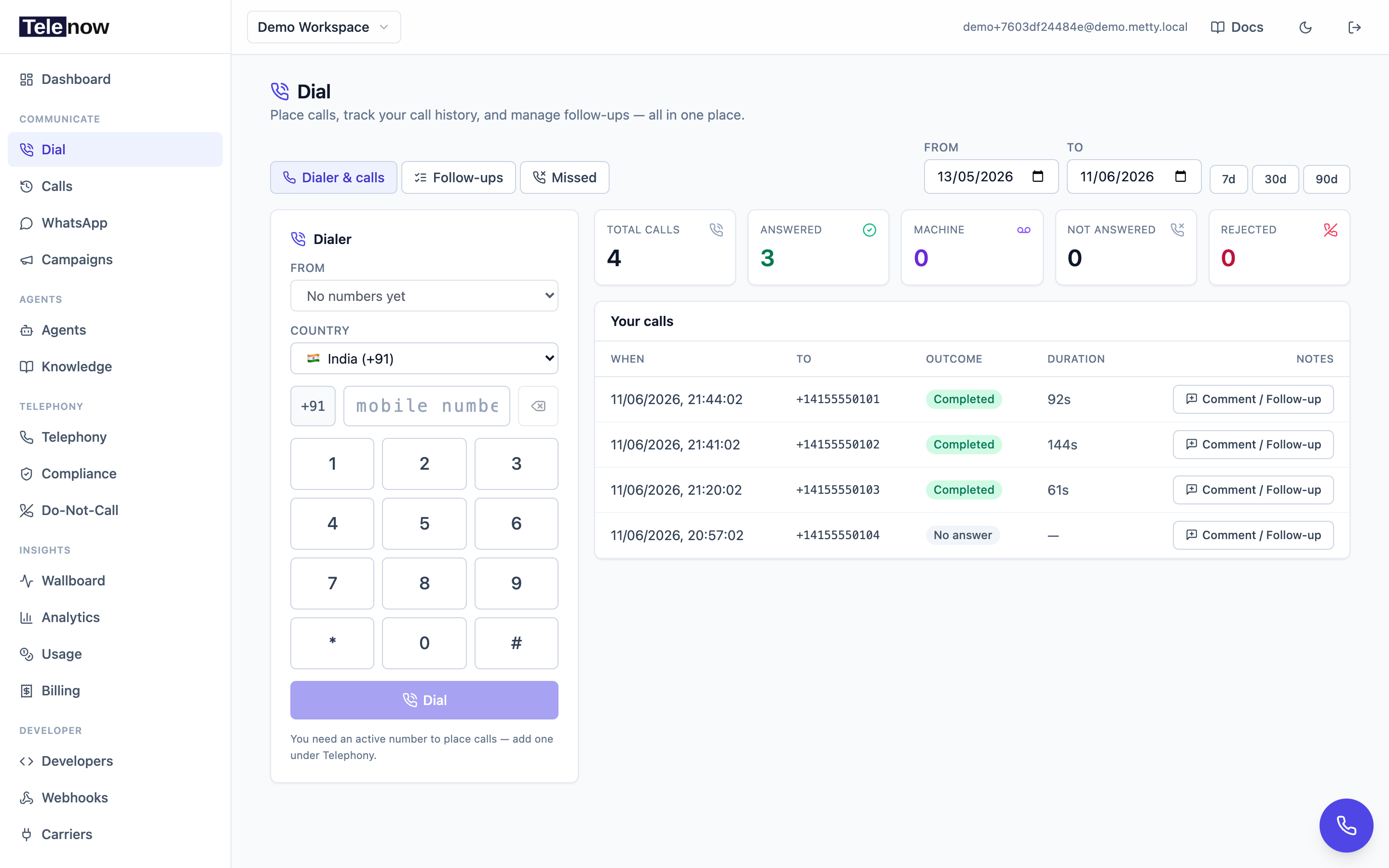
The Dial page — place softphone calls as a human operator. The floating phone button (bottom right) opens the same dialer from anywhere in the app.
Browser test calls
The quickest way to talk to an agent is the Test call button on the agent page — it runs the full voice pipeline (STT → LLM → TTS) in your browser with no phone number. Use it to iterate on prompts, voices, and context variables before you go live. Test calls count toward your usage like any other web call.
The softphone dialer (outbound)
The dashboard includes a softphone so your team can place and receive calls themselves — a human is on the line, not the AI. Open it from the Dial page in the sidebar, or click the floating phone button to pop it up from anywhere.
Placing an outbound call
- Go to Dial in the sidebar (or open the floating dialer).
- Type or paste the destination number, or click Call back on a missed call to pre‑fill it.
- Choose the caller ID (the "from" number). If you have a number allocated to you on the Team tab, it's used by default; otherwise pick one of your org's numbers.
- Press Call. Your browser mic and speaker become the call; Telenow dials the carrier and bridges the audio.
Outbound softphone dials work on every carrier — Plivo, Twilio, Vobiz, Exotel, Vonage, Tata Tele Smartflo, and your own SIP trunk. If the from‑number was imported under your own carrier account (BYOC), the dial uses your account's credentials automatically. See Telephony providers.
When the person you're calling picks up, the dialer goes live instantly on answer — you don't wait for them to speak first. Until they answer you hear a local ringback tone, and the in‑call timer starts at answer (so it measures talk time, not ring time).
In‑call controls
While a softphone call is live you get:
| Control | What it does |
|---|---|
| Mute | Stops sending your mic; the caller hears nothing from you until you unmute. |
| Hold | The caller hears gentle on‑hold music; your mic is suppressed and you can't hear them. Click Resume to return. |
| Keypad | A DTMF dialpad for touch‑tones — navigate IVR menus, enter extensions, etc. Works on every carrier because Telenow sends the tones in‑band on your audio path. |
| Transfer | Warm‑transfer the caller to another number (see Warm transfer). After you hand off, your leg ends and you go straight to wrap‑up. |
| Hang up / Cancel | End the call (or cancel a still‑ringing dial). |
| Picture‑in‑Picture | Pop the dialer out into a small floating window so you can keep talking while you work in other tabs. The call audio is unaffected — only the controls move. |
Wrap‑up
When a connected call ends, the softphone shows a quick wrap‑up form so the operator can log the outcome. Pick a preset — interested, not‑interested, callback, voicemail, wrong‑number, other — or type your own short code, and add an optional note (saved as a call comment). A dial that never connected skips wrap‑up (there's nothing to classify). The outcome is stored on the call as its wrap‑up disposition, separate from the carrier's own disposition. You can also re‑wrap a call later to correct a slip — last write wins.
Softphone calls are recorded server‑side (both legs mixed into one file) and appear in your call history, playable on each call's detail page.
Softphone in your own CRM (click‑to‑call)
You don't have to use the dashboard dialer — you can embed the same softphone bridge in your own CRM or helpdesk. Your backend sends a to (customer) and from (a caller‑ID your org owns) number; Telenow rings the customer and bridges the carrier leg to a softphone you render with the client SDK. A person is on the line — no AI. Recordings and webhooks (call.ended, recording.ready) deliver the recording and call data back to your CRM automatically.
- Backend (server SDK):
tn.calls.createManual({ from, to })(Node) /tn.create_manual_call(to, from_number=…)(Python) → returns{ sessionId, websocketUrl }. See Backend SDKs → Manual / softphone calls. - Raw REST:
POST /api/sessions/init-web-callwith{ "mode": "manual", "fromNumber": "…", "toNumber": "…" }— see the Web‑call API. - Frontend: hand
{ sessionId, websocketUrl }toTelenowCall({ session })— the browser becomes the rep's mic + speaker.
Works on every carrier (Plivo, Twilio, Vobiz, Exotel, Vonage, Tata Tele Smartflo, SIP trunks); BYOC numbers dial on your own carrier account.
AI agent calls
Attach an agent to a number on the Numbers page and it answers inbound calls autonomously, running STT → LLM → TTS in real time with barge‑in (the caller can interrupt). For outbound AI calls, either:
- Use Outbound campaigns for bulk dialing from a list, or
- Place a single call with
POST /api/sessions/initiate-call— see the Sessions & calls API.
The agent's from‑number is resolved from the number you assigned it on the Numbers page (you don't have to re‑enter it). If the agent runs pre‑call CRM lookups, it can even open with "Hi {customer_name}" by looking up the dialed party first; see Integrations and Context variables.
Outbound needs a public callback URL. When a dial is answered the carrier calls back into Telenow's
/webhooksendpoint to bridge the agent in, so the backend must be reachable on a public hostname (PUBLIC_BASE_URL). On a managed Telenow deployment this is already set; self‑hosters who haven't set it will get a clear error instead of a silent dead call.
Inbound calls & ringing
Inbound routing is a property of the phone number, not of any single dialer. When a call comes in, Telenow decides who (or what) answers based on how the number is set up:
- Number assigned to an AI agent → the agent answers autonomously.
- Number allocated to team members → Telenow rings the present members (those signed in and available). You can designate a primary receiver or route to whoever last answered on that number. The first member to accept is bridged; the others stop ringing.
- No one answers → the call falls through to the number's fallback agent, then to a configured missed‑call message. Unreturned inbound calls land in the Missed tab on the Dial page, auto‑assigned to whoever last dialed the caller; an entry drops off once someone calls back and connects.
Member ringing works on every carrier, including SIP trunks. A number either answers with its AI agent or rings members — never both at once (inbound is exclusive). Set all of this up on the Phone numbers page; manage presence and member allocation on Team & workplace.
Warm transfer
Agents (via the transfer tool) and softphone operators can warm‑transfer a live call to any number. The caller keeps hearing the handoff line, then ringing, then the human. Transfer works on every channel:
- Plivo / Twilio / Vobiz / Vonage — the carrier redirects or updates the live call to dial the target.
- Exotel — the Exotel flow's Connect applet dials the target (set up once in the Exotel dashboard).
- Tata Tele Smartflo — not available. Tata exposes no way to redirect or bridge a live call on a voice-streaming leg (only a hangup), so a transfer step on a Smartflo number is refused outright rather than failing halfway through and leaving the caller in silence. Put the number on another carrier if the agent needs to hand calls to a person.
- SIP trunks — Telenow itself dials a second leg on the same trunk and bridges the audio.
- Web calls — the browser leg is bridged to a new PSTN call placed from the agent's bound number (so the agent needs a number assigned).
The destination is checked against your Do‑Not‑Call list before the transfer is placed. Transferred calls keep recording: the AI portion and the bridged human portion appear as two labeled parts on the call's detail page (see Recordings API). On the API, transfer a live call with POST /api/sessions/{id}/transfer.
Web calls (no phone number)
A web call runs entirely in the browser over a WebSocket — the visitor's mic streams to the agent and the agent's voice streams back. This powers:
- The public agent link and the embeddable widget — see Publishing & embedding.
- Programmatic browser calls you start from your own backend — see Programmatic web calls.
Web calls are also recorded (mixed in the browser at HD quality and uploaded on hang‑up, with an 8 kHz server‑side fallback).
Placing calls over the API
- Outbound PSTN:
POST /api/sessions/initiate-call— Telenow dials the number with the chosen agent. - Web call:
POST /api/sessions/init-web-call— returns awebsocketUrlyour client connects to (agent mode), or bridges a softphone leg (mode: "manual").
See the Sessions & calls API and the Web‑call API.
Troubleshooting
- "Telephony configuration missing or incomplete." The agent has no usable from‑number. Assign it a number on the Numbers page, or include carrier details on the agent.
502withreason: "carrier_circuit_open". Telenow runs a per‑carrier circuit breaker: after repeated dial failures it trips open and fails fast (a502with aretryAfterSecshint) instead of hammering a dead carrier. The breaker is keyed per provider — Plivo flapping never blocks Twilio. It re‑arms automatically; wait the suggested time and retry.400with acodestartingexotel_orsmartflo_. The carrier refused for something on the account rather than something about the call: an empty prepaid wallet (exotel_no_credit), incomplete KYC (exotel_kyc_incomplete), or no App Bazaar flow ID on the connection (exotel_app_id_missing). These are400, not502, because retrying cannot clear them — theerrorfield says what to fix and where. In the dashboard the same refusal renders as a panel with a link to the fix. A campaign that hits one pauses rather than burning its remaining targets.409withreason: "agent_busy". That agent's number is already on a call. Wait for it to free up.403— number on the Do‑Not‑Call list. The destination is suppressed for your org. See Do‑Not‑Call.429— quota or concurrency reached. You've hit your monthly usage cap or live‑call concurrency limit. See Usage & billing.- Softphone says "No answer" right after dialing. If the carrier never connects within 30 seconds, Telenow tears the call down so the dialer doesn't sit idle.
After any call ends, it appears in call history and fires the call.ended webhook.